Halo/Magic Tutorial
This tutorial is very, very simple, and creates a nice, magical effect, good for sorceresses, angels, and any other time you might want a soft magical look. However, it should be noted that when you save the file as a .gif, the nice clean edges get eaten; it's not a big deal on a light colored webpage, but might look a little bit awkward if you've got a black background. But anyhoo.
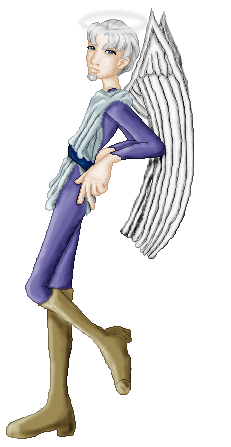
We're going to use the select menu, layers, burn, dodge, and blur tools in Photoshop CS to create this:

This tutorial should work in almost any version of Photoshop, and I'm pretty sure it'll translate into PaintShop Pro.
Start off with the doll, finished except for the magic effect. Both my base and the palette (though I only used color #4) are from Xandorra's Place. Create a new layer (I called it "magic") and use your elliptical marquee tool to draw an oval.
Next, we go to the select menu, and choose modify-->border. I set my border width to four. You should now have an oval-shaped outline selected. Go back to the select menu and choose select-->feather. I used two pixels. This leaves you with a slightly modified outline.
Not surprisingly, the next thing you do is fill it in, giving you this:

(I added a white background on a new layer beneath everything to make it easier to see.)
At this point, if you're doing something like a halo, that might be all you need. (It's all I had for my Ilyan and Kaleal dolls.) However, if you want to spice it up a little bit, you can keep going.

Take your blur tool, and any interesting brush you wish (I used a slightly star-shaped brush which came as one of the defaults), and blur from the dark center of the ring out and in, creating some points. That looks kind of odd on its own, however, so we go to the dodge and burn tools.
Select the dodge tool, and set it to a one-pixel brush, midtones, and 100% exposure. Draw a few straight lines with it, from points out into the darker parts of the ring, and through the dark parts of the ring itself. Follow this up with the burn tool, at the same settings. Do the same thing, and voila!
It's a very easy process, but of course, email me any questions, or leave them in the guestbook. And if you use this tutorial, drop me a line so I can see!